





 Free, Fast, and Secure

Quick Steps to Compress PDF to 300KB
Step: 01
Select Upload, then drop your PDF files from your PC or mobile to start.
Step: 02
Pick the “Compress PDF” option to shrink your PDF files to 300KB.
Step: 03
Finally, press “Download” to save the compressed file to your device.
Why Compress PDF to 300KB with PDFNoob
Works on:

Windows

Linux

Mac

iPhone

Android

No Sign-ups or Logins
PDFNoob compresses your single or multiple PDF files without any sign-ups or logins, so you can get what you want in seconds.

High-Quality Output
By preserving text and vector graphics, your files stay crisp. So get sharp details in your PDF after compressing from PDFNoob.

Batch Compressed PDF
You can simply process up to 4 PDF files with PDFNoob in a single session for bulk assignments or multiple flyer drafts.

Easy-to-Use
With only three simple steps, PDFNoob will compress PDF to 300KB. No installation lets you work from any device, anytime.

Security Ensured
PDFNoob deletes all your files right after compressing. So, no storage, sharing, or access to your PDFs is ever retained.

Exactly 300KB
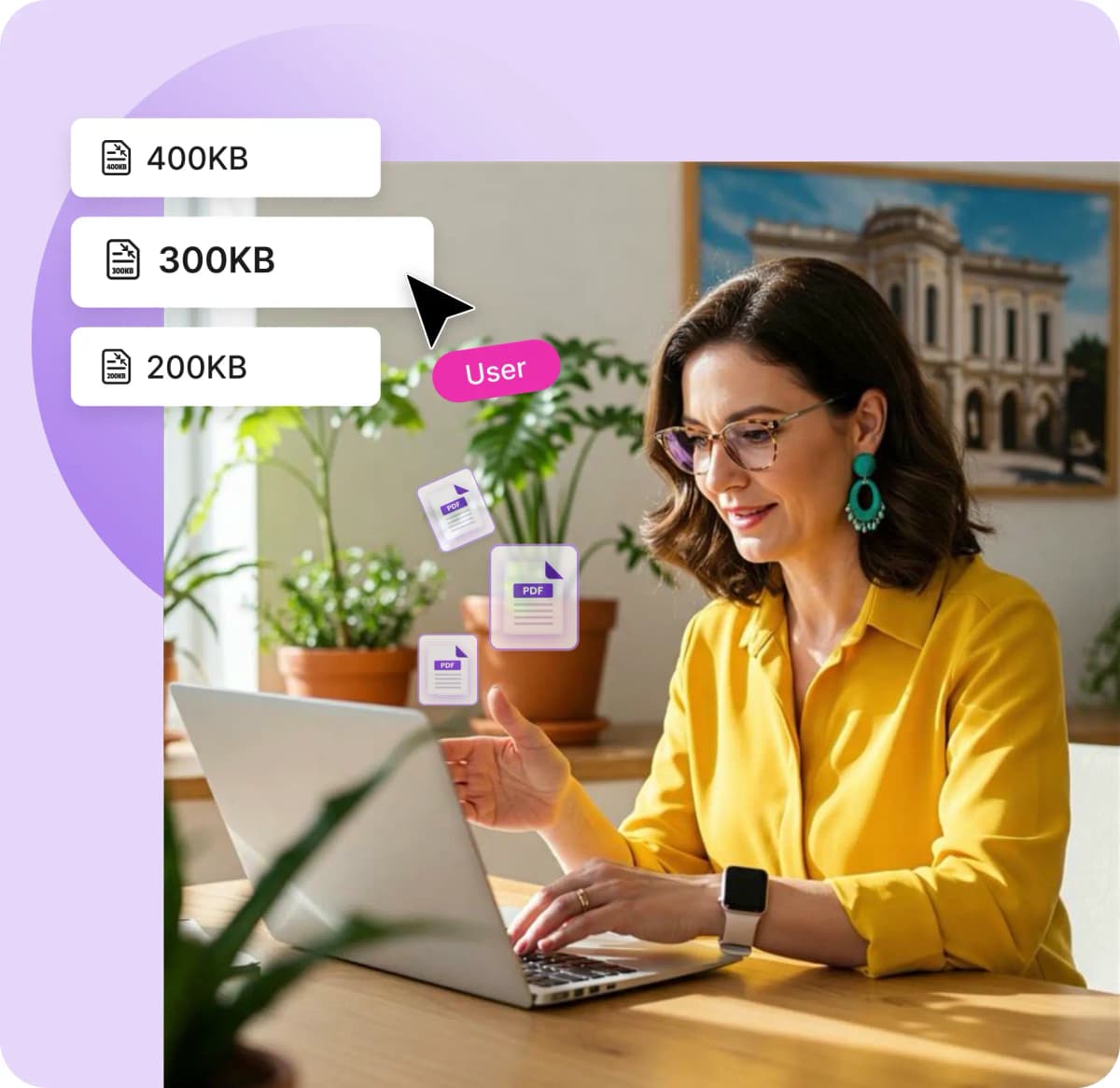
With advanced algorithms, your PDF will be converted to exactly 300KB, letting you resize forms or resumes precisely.
Frequently Asked Questions
How can I compress a PDF to exactly 300KB online?
 With PDFNoob, you can compress PDF to 300KB exactly every time. Just upload your file and hit "Compress PDF," and download. PDFNoob uses a smart algorithm that targets nearly 300KB based on your file’s content and structure so you don’t have to tweak any settings.
Can I compress a scanned document or passport to 300KB?
Absolutely. With PDFNoob, you can compress any kind of scanned images or documents such as passports, ID cards or certificates for retaining sharp text and layout within the 300KB limit.Will my PDF still be readable after compression?
Yes. Your PDF will be readable after compressing to 300KB as PDFNoob preserves vector elements and key formatting to ensure readability for forms, resumes, charts and so on.Is this tool safe to use for sensitive documents?
Undoubtedly, PDFNoob is the safest tool to use for all kinds of sensitive documents or images as it doesn’t store or view any uploaded content and all files are auto-deleted right after compression completes.What if my original PDF is too large or too complex?
Don’t worry about that as PDFNoob’s algorithm will compress it as much as possible toward 300KB. In some rare cases, heavily detailed or image-heavy PDFs may end up slightly above the target.